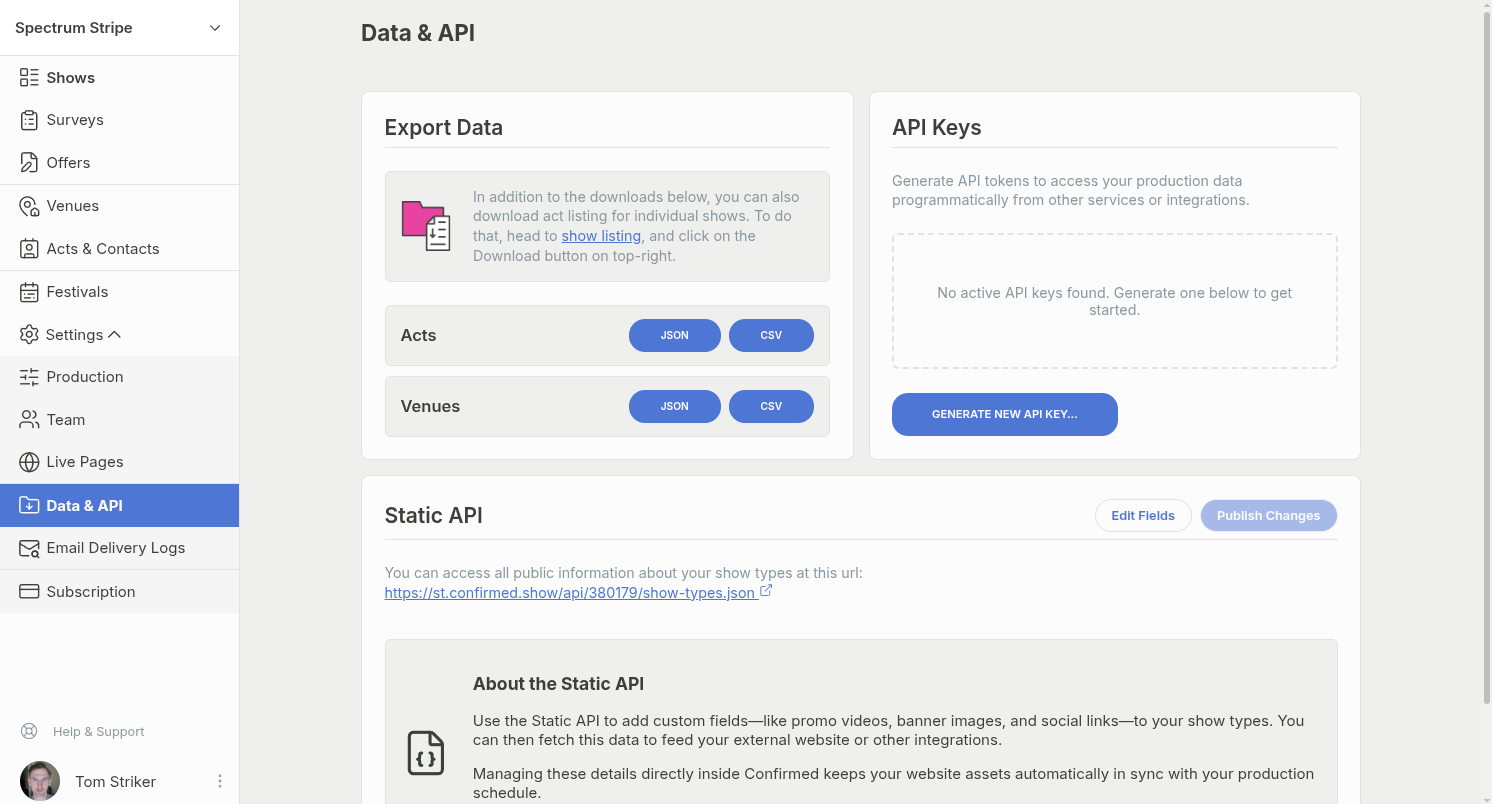
You can create, copy and delete a production's API keys from its Data & API page.
Key types
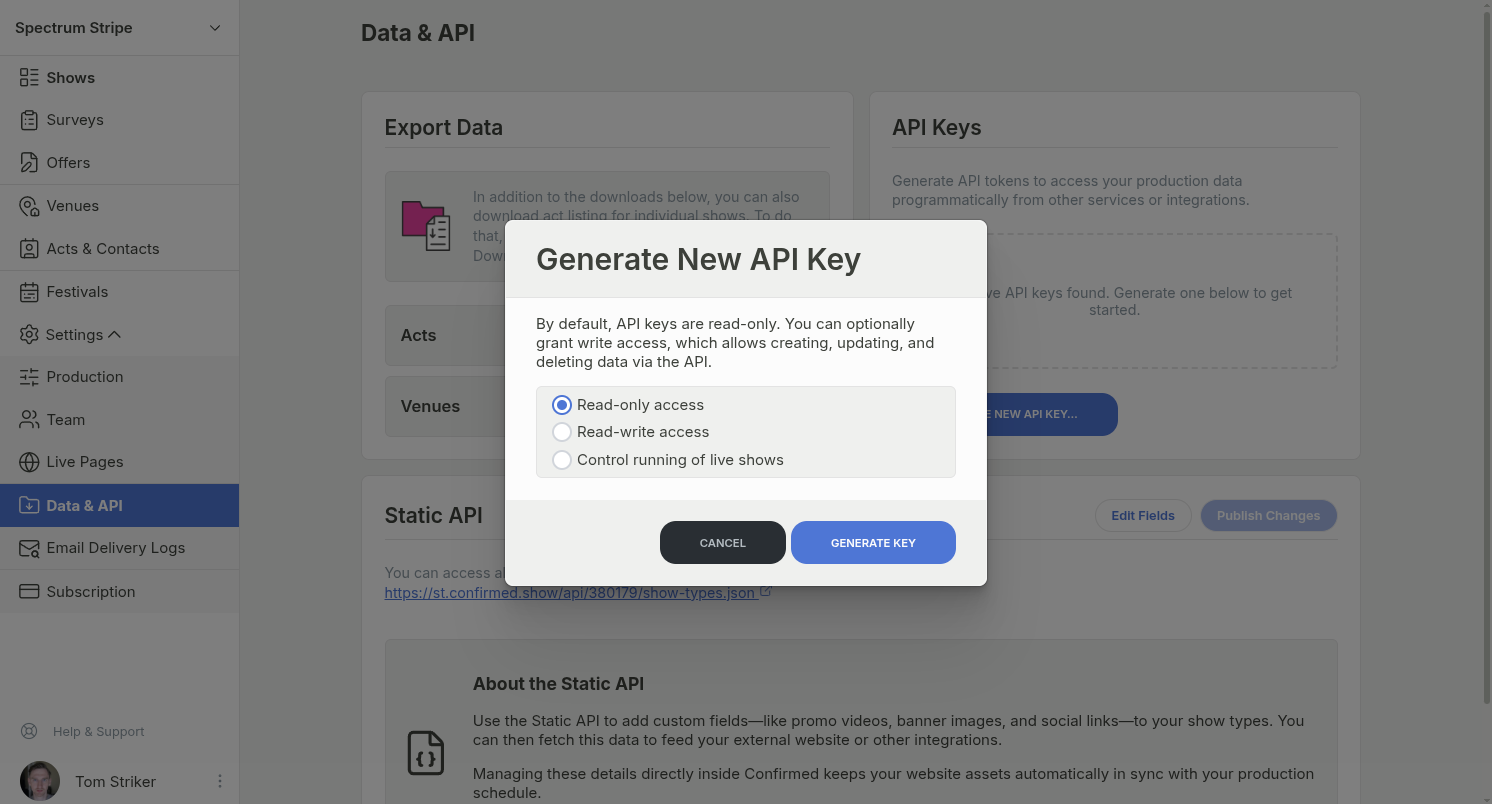
Each key has one of three types. A key works like a password for everything its type can reach, so it's best to pick the narrowest type that does the job.
-
Read-only access: every
GETendpoint. This is the one to pick unless you're writing data back. - Read-write access: the same, plus creating and updating shows, acts and venues, sending ticket sales and uploading files.
- Control running of live shows: the Showtime endpoints and nothing else, so you can give one to a lighting desk or a stream deck without giving access to your bookings.
Generate a new API key
- Open Settings > Data & API for your production.
- Under API Keys, click Generate New API Key….
-
In the Generate New API Key modal, choose a key type.
- Read-only access
- Read-write access
- Control running of live shows
- Click Generate Key.
- Click the token in the list to copy it.
Delete an API key
- Open the Data & API page for your production.
- Find the token in the API Keys list.
- Click the trash button on the token row.
-
In the Delete API Key confirmation modal, enter
DELETEand confirm.
Deleting a key is permanent. Any app or service using that key loses access straight away.